API Gateway
Now S3 Bucket and IAM Role Created Now we move forward to Create API Gateway
Creating API
- Search For API Gateway (opens in a new tab) in console and navigate to the dashboard
- Then Select REST API and Click BUILD
- On API Details Select New Api
- Enter Api Name and Click Create API Button
- The Api Has Been Created now we going to Configure based on File Upload
Configuring Api
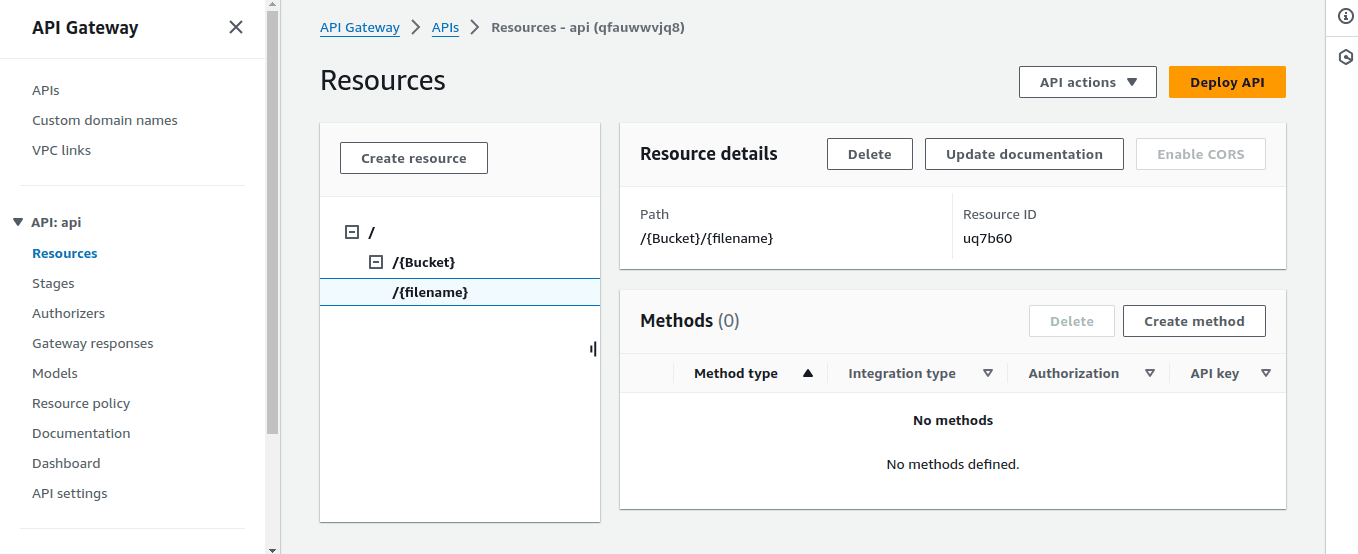
Now We are going to set the API Parameter Format like /{Bucket}/{filename}
- Now Create Bucket name as Parameter inside { } and enter Create Resource
- below the bucket path Create File name as Parameter same as Bucket name creating and enter Create Resource
- Check the Bucket name and Filename format like mentioned below
Create Method
- Next create Method for the API. On the Dashboard Right Panel named Method Select Create Method and Fill the form as same way By Mentioned below
- Method Type :PUT
- Integration type: AWS Service
- AWS Region : Sames As S3 Bucket Region
- AWS service : S3
- HTTP method : PUT
- Action type : Use path override
- Path override - optional : {Bucket}/{Filename}
- Execution role : Copy Role ARN from the Created AWS IAM Role
And Then the nexr step we need to set the Request From the API, Lets Set
In the Right Side from the path Panel appear a Chart look like mentioned below, Click On Integration Request >
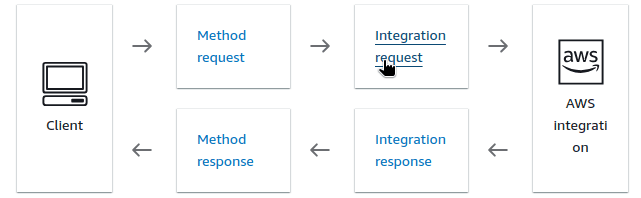
Under the chart, Tabs will be appear and click EDIT on Integration request settings, The Page will navigate to the Integration Request settings, and Find For URL path parameters and there is a form field will open named as name and Mapped from, just type two datas that like i mentioned below
- Name: Bucket , Mapped From : method.request.path.Bucket
- Name: filename , Mapped From : method.request.path.filename
then save the form and exit
Open Left Panel and go onto Api Settings Under The Binary media types (0) Click Manage media types Button and navigate to the Page
note: if you need to upload image only means just put image/jpeg or image/jpg
- Otherwies if you upload Any type of files means put ∗/∗
and then click save changes
get Back To Resource Dashboard and Deply the API By Click on the Top Right Corner One last Step is Pending that is
Select Stage Of Your API as ∗New Stage∗ and Enter Stage Name then Choose Deploy
Thats All The API Has been Deployed After Some Minutes
API Is Visible On the Stages Panel named as Invoke Url And After Dploying, Check The url by upload FIles using Postman or Using Curl
curl -X POST -H "Content-Type: application/pdf" -d @path/to/your/file.pdf http://localhost:3000/upload-pdf (opens in a new tab)